

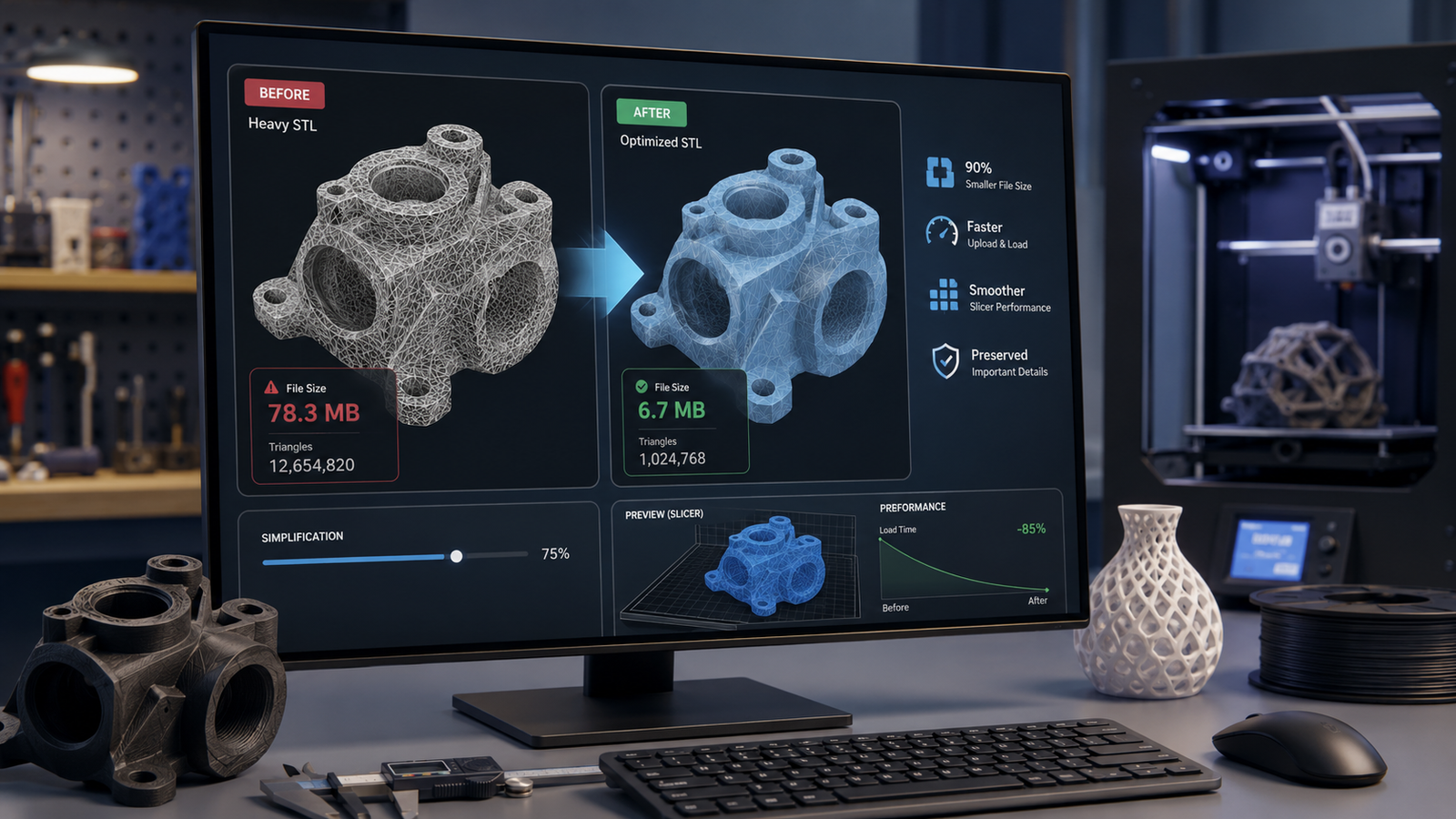
Large STL files can be frustrating to work with. They take longer to upload, open slowly in slicer software, and can make even simple print preparation feel heavier than it needs to be. In many cases, the extra file size does not improve the final print at all.
In this guide, we explain how to reduce STL file size for 3D printing without ruining the model. You will learn what makes STL files large, how to simplify them safely, and what to check before sending them to print. If you need help preparing a model for production, you can use our 3D printing service UK or upload your file directly through our instant quote / upload page.
STL files describe 3D models using thousands of small triangles. The more triangles the file contains, the larger the file usually becomes.
A file may become unnecessarily large because of:
In simple terms, a large STL file usually means the model contains more surface information than needed for practical 3D printing.
Reducing STL file size makes the entire workflow easier.
A smaller STL file can help with:
For many prints, especially standard FDM jobs, a smaller and cleaner STL is often better than an oversized file packed with unnecessary mesh detail.
Not necessarily.
A common mistake is assuming that a larger STL file automatically means a better print. That is not always true. A huge STL may contain more triangles, but if the printer cannot meaningfully reproduce that extra detail, the larger file brings little real benefit.
Print quality also depends on:
That is why it makes more sense to aim for the right STL size rather than the biggest possible one.
You may also want to read What Resolution Should STL Files Be.
A file may be larger than necessary if:
This is especially common with files exported at very high settings from CAD software.
The goal is to make the STL lighter without damaging important geometry.
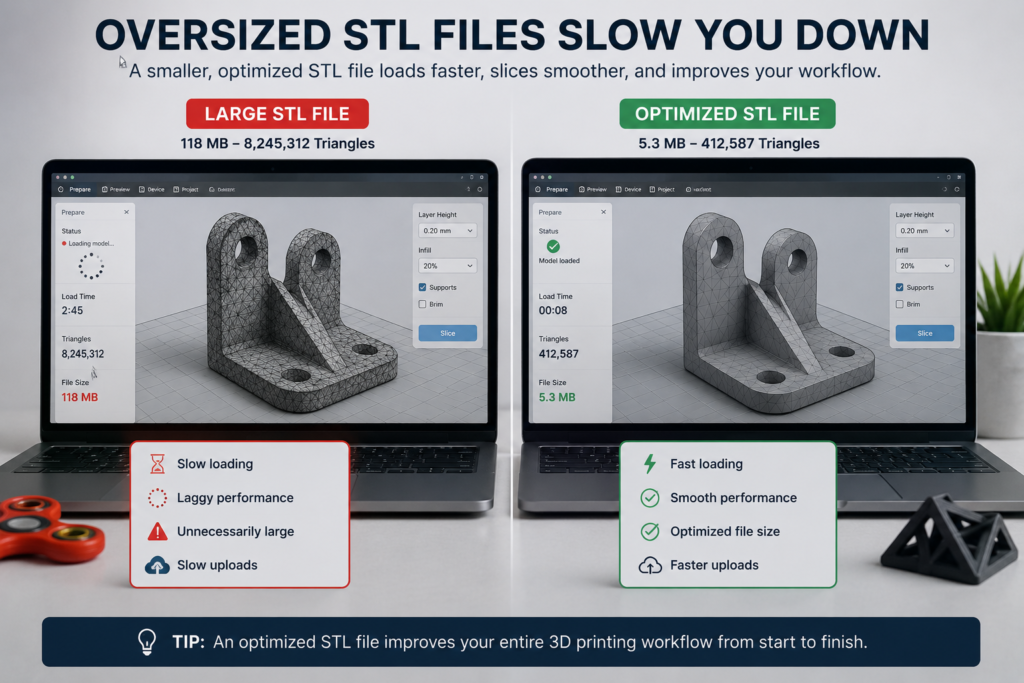
One of the best ways to reduce file size is to reduce mesh density slightly. This means using fewer triangles while keeping the overall shape good enough for printing.
In many cases, a moderate reduction gives:
This is usually the safest first step.
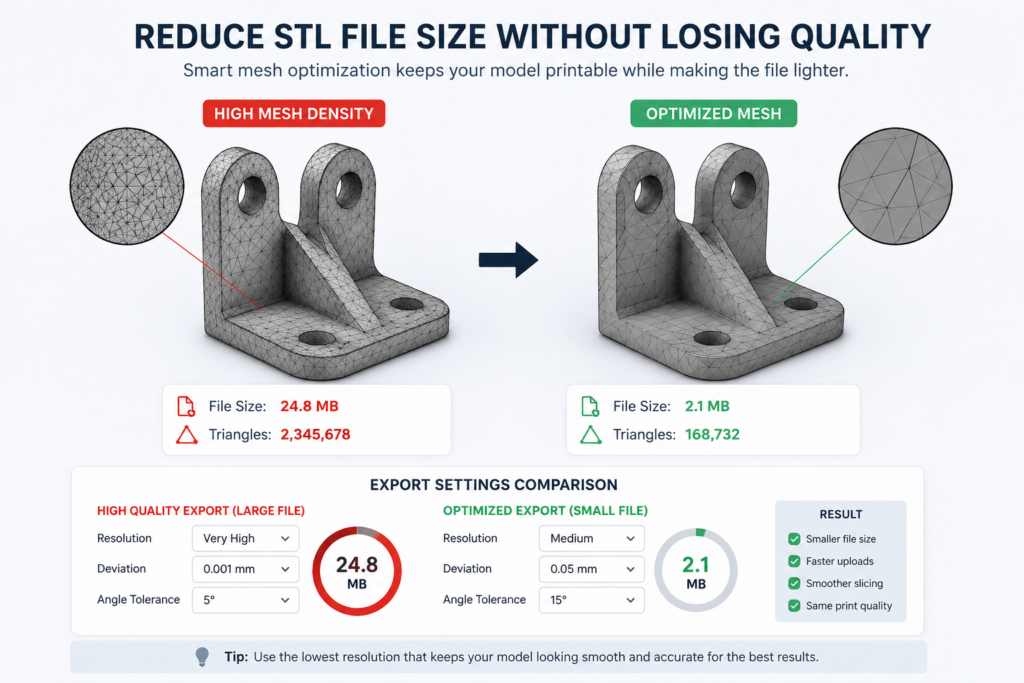
If you still have access to the original CAD file, the best solution is often to re-export the model with more sensible STL settings.
Look for settings such as:
For most parts, medium settings are often enough.
You may also want to read How to Export STL Files from CAD Software.
Some models include tiny surface features or decorative detail that will not be visible in the final print. Removing unnecessary detail can reduce mesh density and improve print preparation.
Examples include:
This is especially useful when preparing functional parts rather than display models.
Some STL files include overlapping or duplicated surfaces that add file weight without adding useful geometry.
This can happen when:
Cleaning this up can reduce file size and also improve print reliability.
Curved surfaces usually generate the most triangles in an STL file. Reducing density on curves is one of the main ways to shrink file size, but it has to be done carefully.
If you simplify too much, you can create:
The aim is to reduce triangles without making curves look obviously broken.
It is possible to overdo STL reduction.
If you simplify too aggressively, you may create:
This is why STL reduction should always be checked visually before printing.
Very small file size is not the goal. A clean and efficient file is the goal.
Reducing STL file size is usually most effective on:
It is often less useful on:
A smaller file is only useful if the model still prints properly.
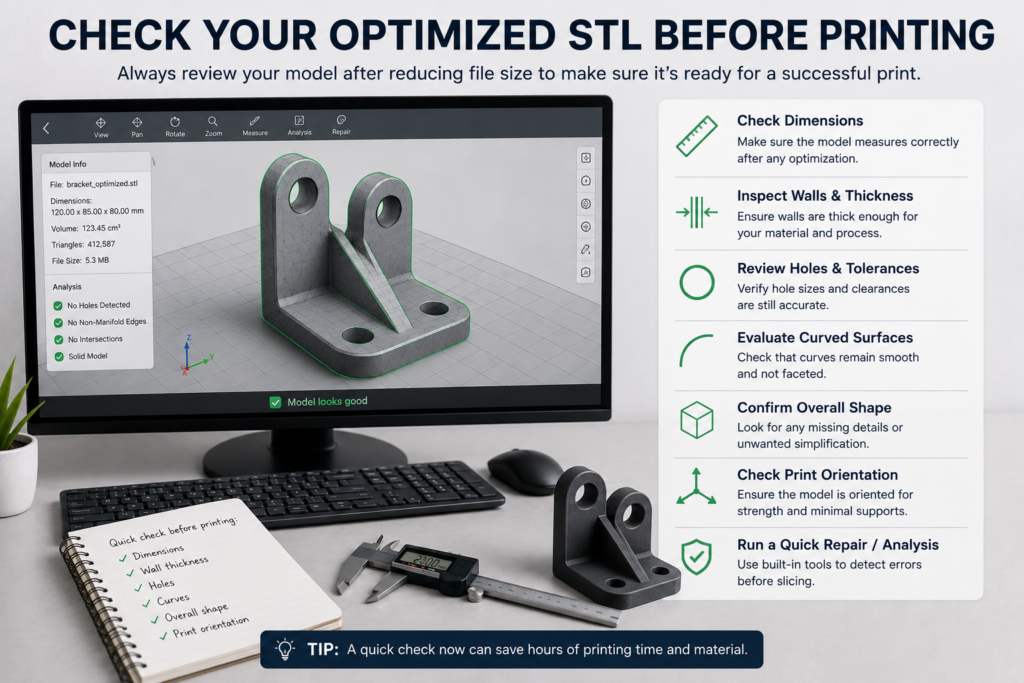
After reducing STL file size, always check:
A lighter STL is helpful, but not if it introduces print problems.
You may also want to read How to Check If a Model Is 3D Printable.
Some large STL files are not just oversized. They are also messy.
For example, a file may be large because it contains:
In those cases, reducing the file size alone will not solve everything. The file may also need repair.
You may also want to read Why STL Files Fail in 3D Printing.
If your goal is to upload the model for a quote or production, the safest workflow is:
This gives you a lighter file without increasing the risk of print failure.
Avoid these common mistakes:
A good STL should be efficient, but still accurate enough for the intended print.
If your STL file is:
then it is worth having it checked before printing.
At 3DRevolution, we help customers review STL files, reduce unnecessary complexity, and prepare models for production in the UK. You can upload your file through our instant quote / upload page or learn more about our 3D printing service UK.
Reducing STL file size is not about making the file as small as possible. It is about removing unnecessary mesh weight while keeping the model accurate and printable.
For most 3D printing jobs, the best approach is to use sensible export settings, reduce excess triangle density carefully, and always check the model again before printing. A lighter STL file is easier to upload, easier to slice, and often just as effective as a much larger one.