

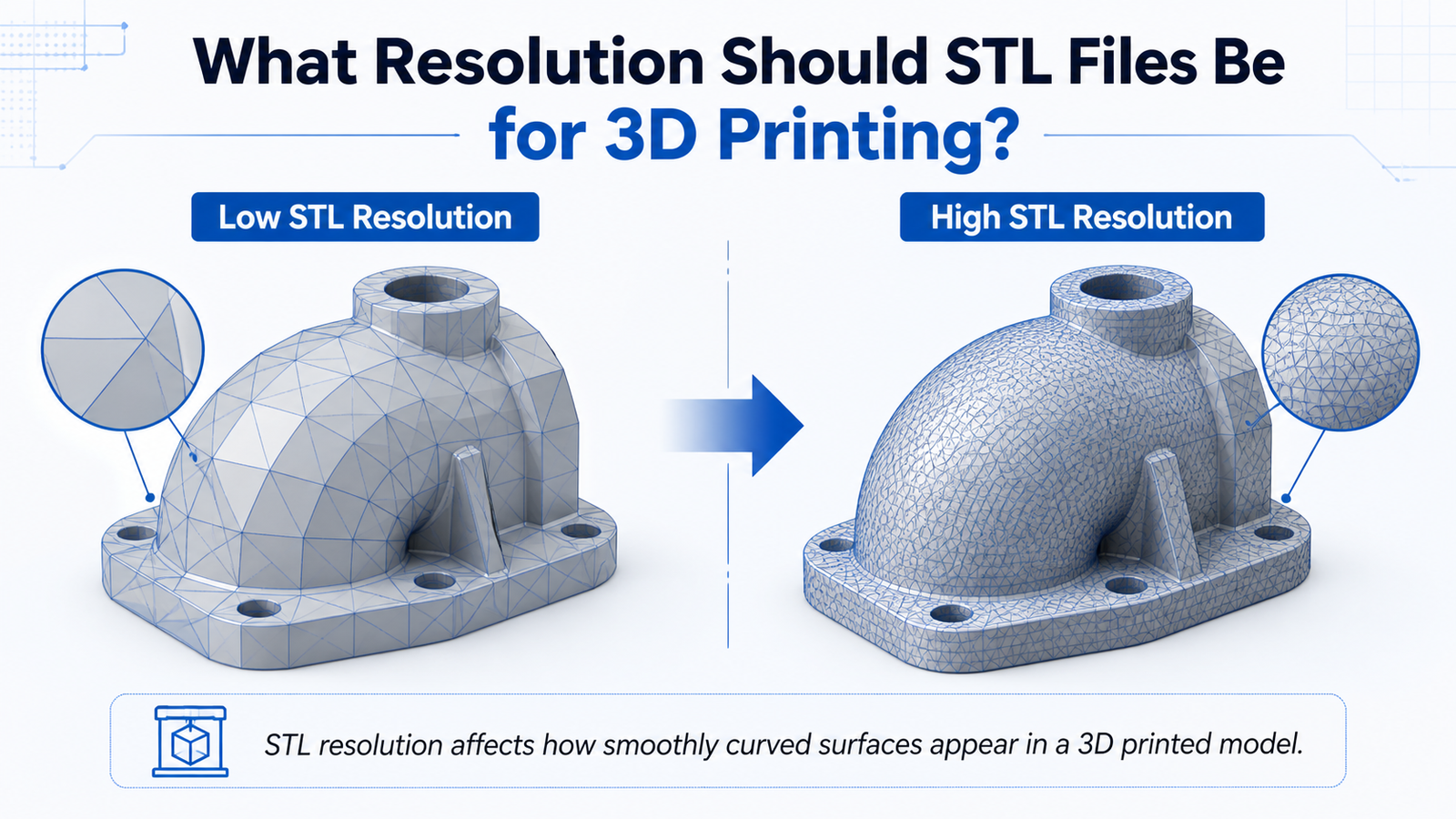
STL resolution is one of the most important parts of preparing a 3D model for printing. If the resolution is too low, curved surfaces can look rough and faceted. If it is too high, the file can become unnecessarily large, slow to process, and harder to work with without improving the final print.
In this guide, we explain what STL resolution means, how it affects 3D printing, and how to choose the right balance between detail and file size. If you need help preparing a model for printing, you can use our 3D printing service UK or upload your file directly through our instant quote / upload page.
STL resolution refers to how accurately a 3D model’s surface is represented when exported as a mesh. STL files describe geometry using thousands of small triangles. The more triangles used, the smoother the model can appear.
A higher resolution STL uses more triangles and captures curves more accurately. A lower resolution STL uses fewer triangles and creates a simpler, rougher mesh.
Resolution matters because it affects:
A poor resolution choice can cause either visible quality issues or unnecessarily heavy files that offer little real benefit.
The goal is not to create the biggest STL file possible. The goal is to create a file with enough detail for the print process you are using.
Low resolution files use fewer triangles, which means:
This may be acceptable for:
High resolution files use more triangles, which means:
This may be useful for:
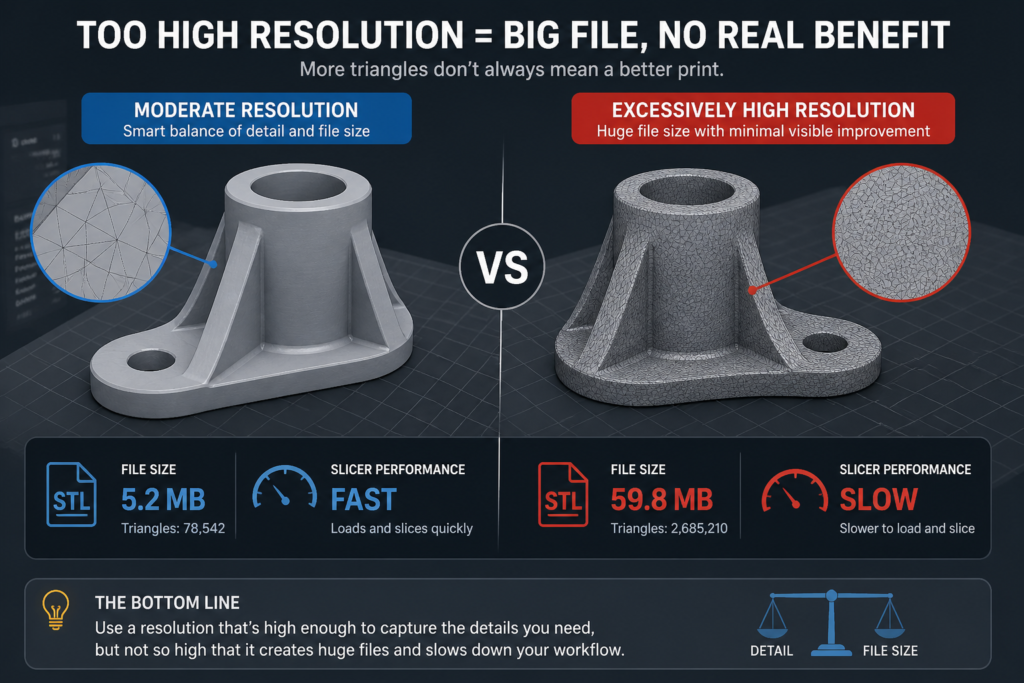
However, extremely high resolution often adds file weight without delivering meaningful print improvement.
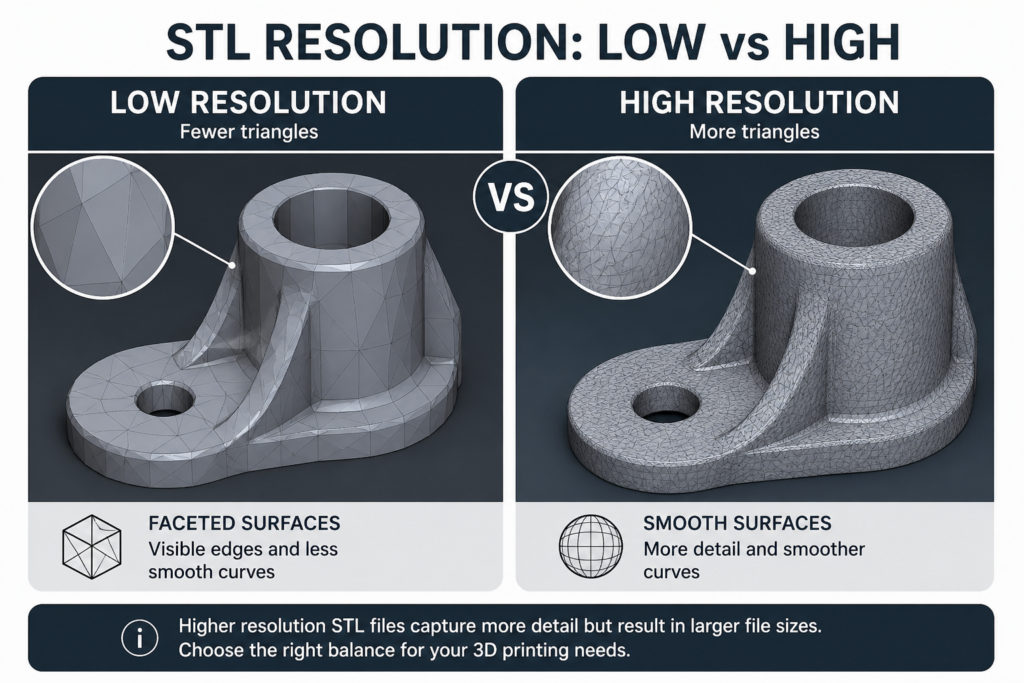
If STL resolution is too low, your print may still succeed, but the model can show visible geometric flat spots where curves should be smooth.
Common low-resolution problems include:
This is most noticeable on:
If STL resolution is too high, the STL file may become much larger than necessary.
This can cause:
For many 3D printing jobs, especially FDM, ultra-high STL resolution gives diminishing returns. The printer itself has physical limits based on nozzle size, layer height, and machine accuracy.
In other words, exporting a ridiculously dense mesh does not magically make the print perfect. Technology still has the nerve to obey physics.
The right STL resolution depends on the model, the print process, and the purpose of the part.
A lower or medium STL resolution is usually enough for:
A medium to high STL resolution is better for:
Always match the file quality to the real print capability.
For example:
A common mistake is assuming that higher STL resolution automatically means higher print quality.
That is not always true.
Print quality also depends on:
A high-resolution STL cannot fix poor print settings, weak design choices, or slicing errors.
You may also want to read How to Prepare an STL File for 3D Printing.
There is always a trade-off between detail and file size.
A good STL file should be:
If a file becomes excessively large, it may be worth reducing mesh density slightly without harming visible quality.
This is especially useful when sending files to a service bureau or uploading models online.
When exporting STL files from CAD software, resolution is often controlled by settings such as:
Different software uses different terms, but the idea is the same: these settings control how closely the triangle mesh follows the original geometry.
A practical rule is:
If you are exporting from CAD, you may also want to read How to Export STL Files from CAD Software.
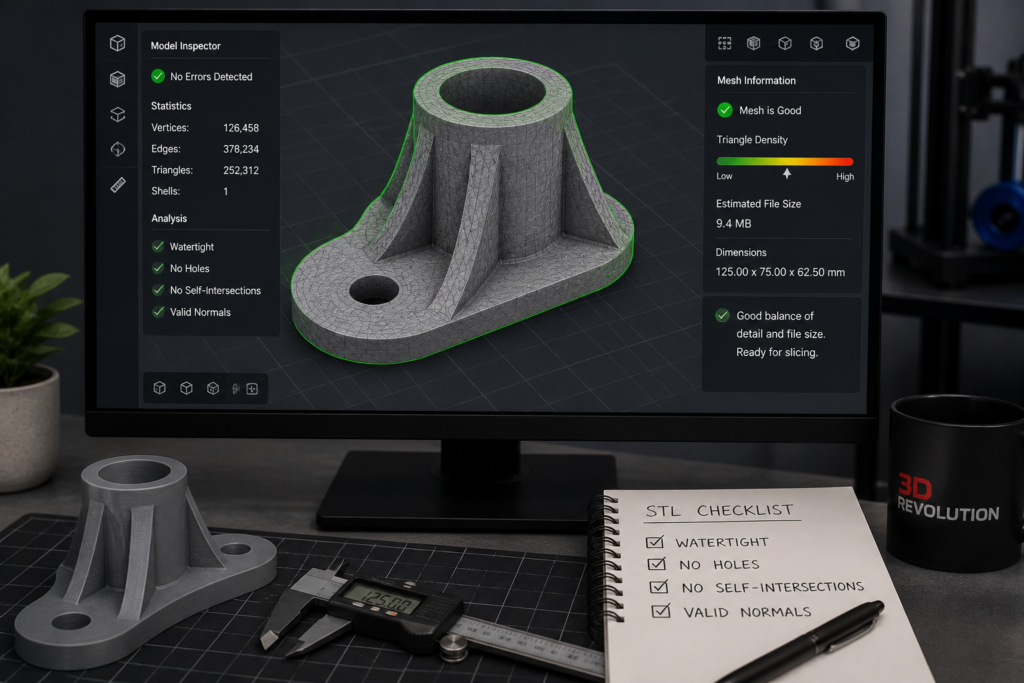
A simple visual inspection usually helps.
Open the STL in your slicer or model viewer and check:
If the file looks clean and performs well, the resolution is probably fine.
If the mesh looks obviously blocky, you may need a better export.
If the file is huge and slow without visible improvement, the resolution may be unnecessarily high.
For most FDM 3D printing jobs, a medium STL resolution is the best choice.
That usually gives:
Very high STL resolution is rarely necessary for standard FDM parts, especially if the model is functional rather than decorative.
Resin printing can show finer surface detail, so it often benefits more from smoother STL files.
For resin models with visible curves, miniatures, or presentation surfaces, a medium to high resolution STL is often worth using.
Still, there is no need to go absurdly high if the increase is only inflating file size without visible benefit.
This can leave rounded features visibly faceted and reduce the final appearance of the model.
This creates unnecessarily heavy files and slows down the workflow.
The best STL resolution for a display resin part is not necessarily the same as the best STL resolution for a simple FDM bracket.
A model can have perfect STL resolution and still fail to print if the walls are too thin, the geometry is broken, or the part is badly designed.
You may also want to read How to Check If a Model Is 3D Printable and Common STL File Errors and How to Fix Them.
If you are not sure whether your STL file has the right resolution, it is worth checking before production. This is especially true for:
At 3DRevolution, we help customers review files, check model quality, and prepare prints for production in the UK. You can upload your model through our instant quote / upload page or learn more about our 3D printing service UK.
The best STL resolution for 3D printing is not the highest possible setting. It is the setting that gives enough detail for the model while keeping the file practical and efficient to use.
For most prints, a medium STL resolution is the best starting point. If the part includes visible curves or fine visual detail, a higher setting may help. The key is to balance surface quality, file size, and the real capability of the printer.