

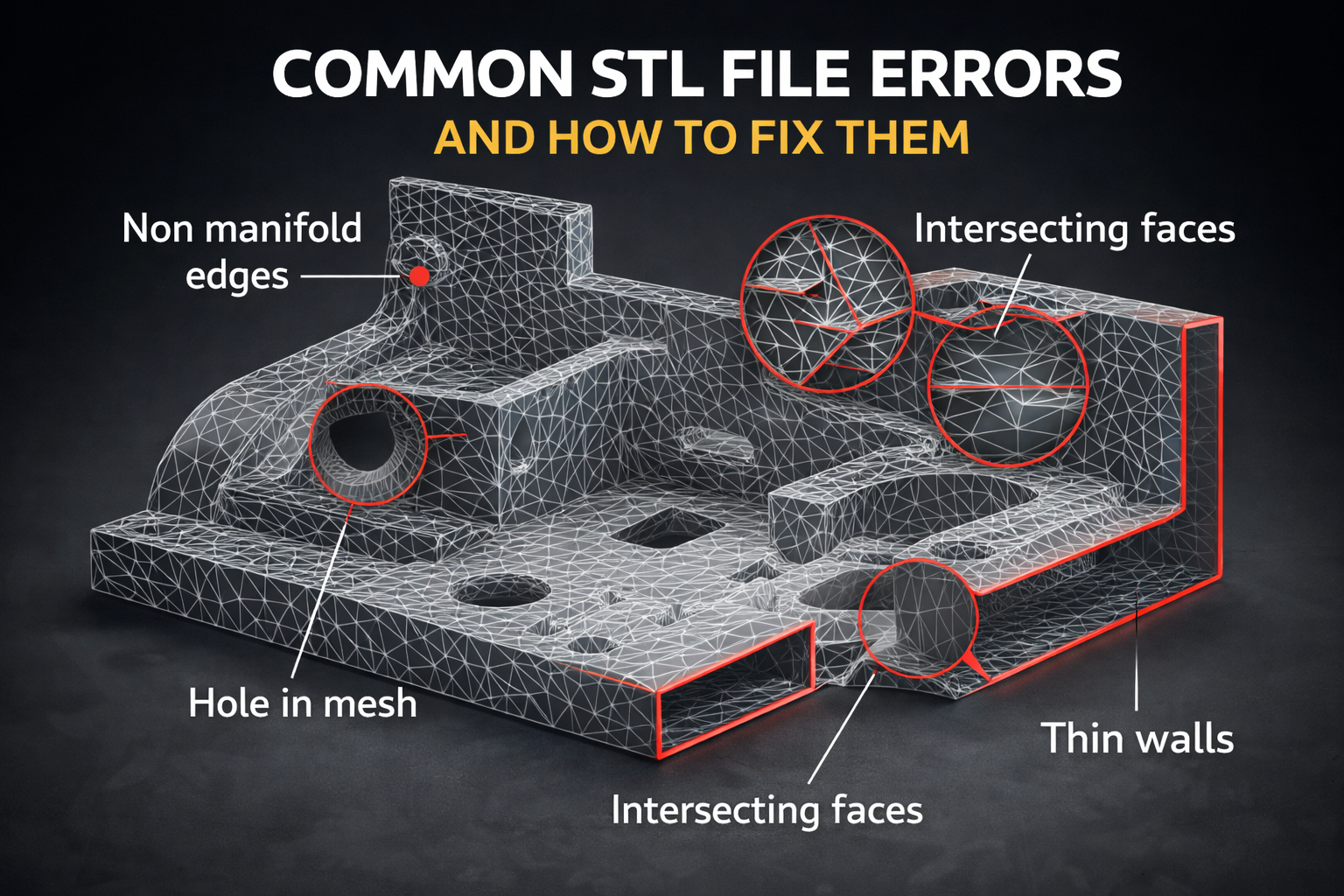
3D printing is becoming increasingly popular for prototyping, product design, and hobby projects. However, many prints fail before they even begin because the STL file contains errors.
Even a well-designed model can cause problems if the mesh is broken, contains holes, or has non-manifold geometry.
In this guide we explain the most common STL file errors, how to detect them, and how to fix STL files before 3D printing to ensure successful prints. If you are new to preparing models, read our guide on how to prepare an STL file for 3D printing.
An STL file describes a 3D object’s surface using thousands of small triangles that form a mesh. This mesh must be clean, closed, and mathematically correct for a 3D printer to process it.
If the mesh contains errors, the slicer software may generate incorrect toolpaths, missing layers, or even fail to slice the model entirely.
Common STL errors usually occur when:
Understanding these errors is the first step to preparing a 3D printable STL file.
If you work with CAD models, you may also want to learn how to export STL files from CAD software correctly.
Many STL problems fall into several well-known categories. These errors can often be repaired using specialized mesh repair tools.
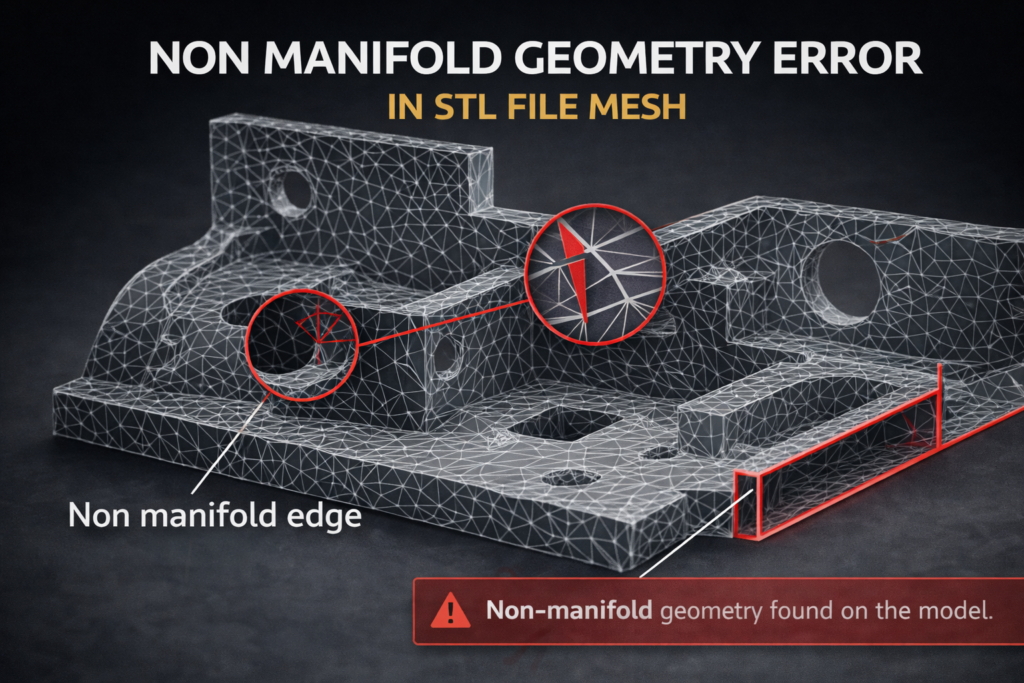
One of the most common STL problems is non-manifold geometry.
This happens when edges are shared by more than two faces or when surfaces intersect in a way that creates impossible geometry.
A 3D printer cannot interpret these structures correctly because they do not define a valid solid object.
Typical causes include:
Most slicers will warn you if non-manifold edges are detected.
Another common problem is holes in the STL mesh.
A proper 3D printable model must be watertight, meaning the surface is fully closed. If the mesh contains gaps, the slicer cannot determine which parts are inside or outside the object.
This can result in:
Mesh holes often appear when models are exported incorrectly from CAD software.
Each triangle in an STL mesh has a direction called a normal. This indicates which side of the triangle faces outward.
If normals are inverted, parts of the model may appear inside-out in the slicer.
When slicing the model, this can cause:
Most mesh repair tools can automatically recalculate normals.
Intersecting geometry occurs when multiple parts of a model overlap or pass through each other.
For example, two solids may intersect instead of being properly merged into a single object.
While some slicers attempt to resolve these intersections automatically, complex overlaps can cause slicing errors or structural weaknesses in the final print.
Thin walls are not technically a mesh error, but they often cause 3D printing failures.
If you want to learn more about minimum wall thickness and how to make a model printable, see our guide on How to Make Your Model 3D Printable.
If the wall thickness is smaller than the printer nozzle width, the slicer may ignore those surfaces.
Typical minimum wall thickness for FDM printing:
Thin features may disappear completely during slicing.
Material choice also affects wall thickness and print strength, especially when comparing PLA, PETG, and ABS materials.
PLA vs PETG vs ABS – Which Material Is Best
Before printing, it is important to check STL files using specialized software.
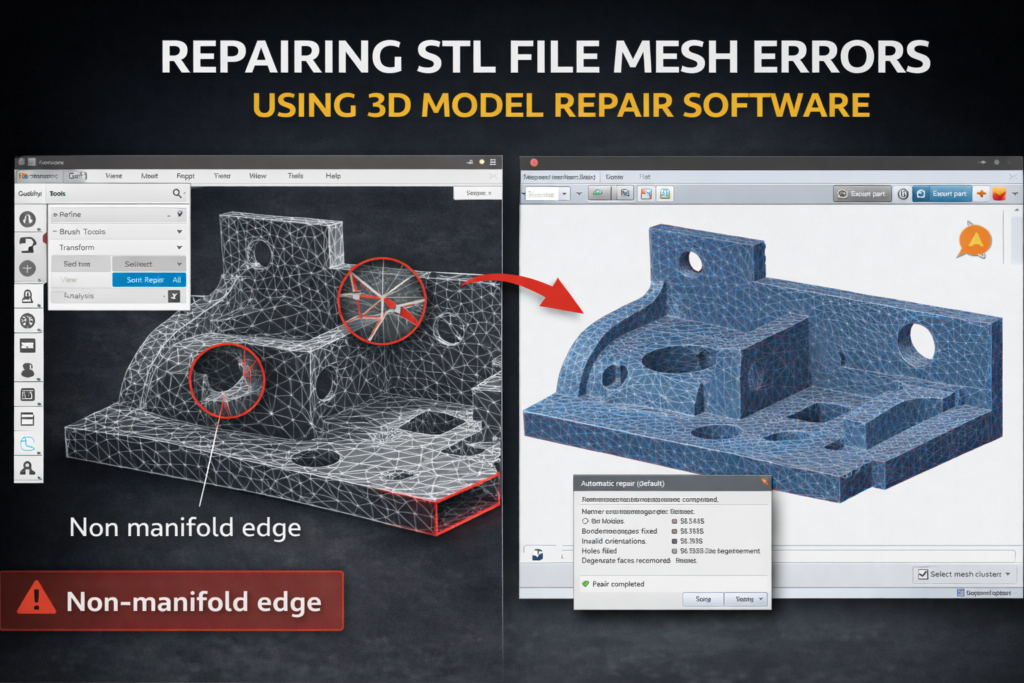
Many tools can analyze the mesh and highlight problematic areas.
Popular tools include:
Most slicers automatically detect issues such as:
Running a quick mesh analysis before printing can save hours of failed prints.
Fortunately, most STL problems can be repaired automatically using mesh repair tools.
Programs such as Meshmixer and Netfabb include automatic repair functions that can fix common mesh problems in seconds.
Typical repair functions include:
These automatic tools work surprisingly well for many models.
In more complex cases, manual editing may be required.
This can involve:
Advanced modeling software such as Blender allows detailed mesh editing.
However, most users can fix basic STL problems using automated repair tools.
To avoid STL problems in the first place, it is important to follow good modeling practices.
Recommended guidelines include:
Most CAD programs offer STL export settings that allow control over mesh resolution and quality.
You can also read our guide on Best File Formats for 3D Printing (STL vs STEP vs OBJ) if you are deciding which format to use before exporting your model.
Before sending a file to a printer or uploading it to a 3D printing service, always run a final check in slicer software.
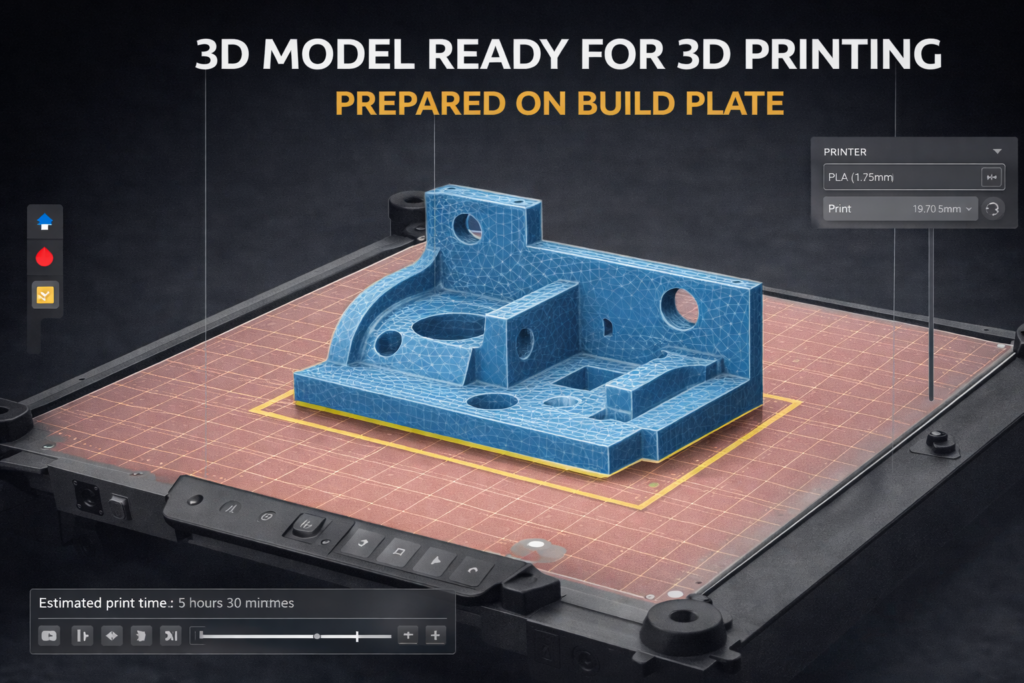
Confirm that:
Taking a few minutes to inspect the file can prevent failed prints and wasted material.
If you already have a model prepared but are unsure whether it is printable, our online 3D printing service in the UK can help review your STL file.
At 3DRevolution.co.uk, we review STL files, check for geometry errors, and recommend the best materials and printing technologies for your project.
Simply upload your STL file and request a quote to get started.