

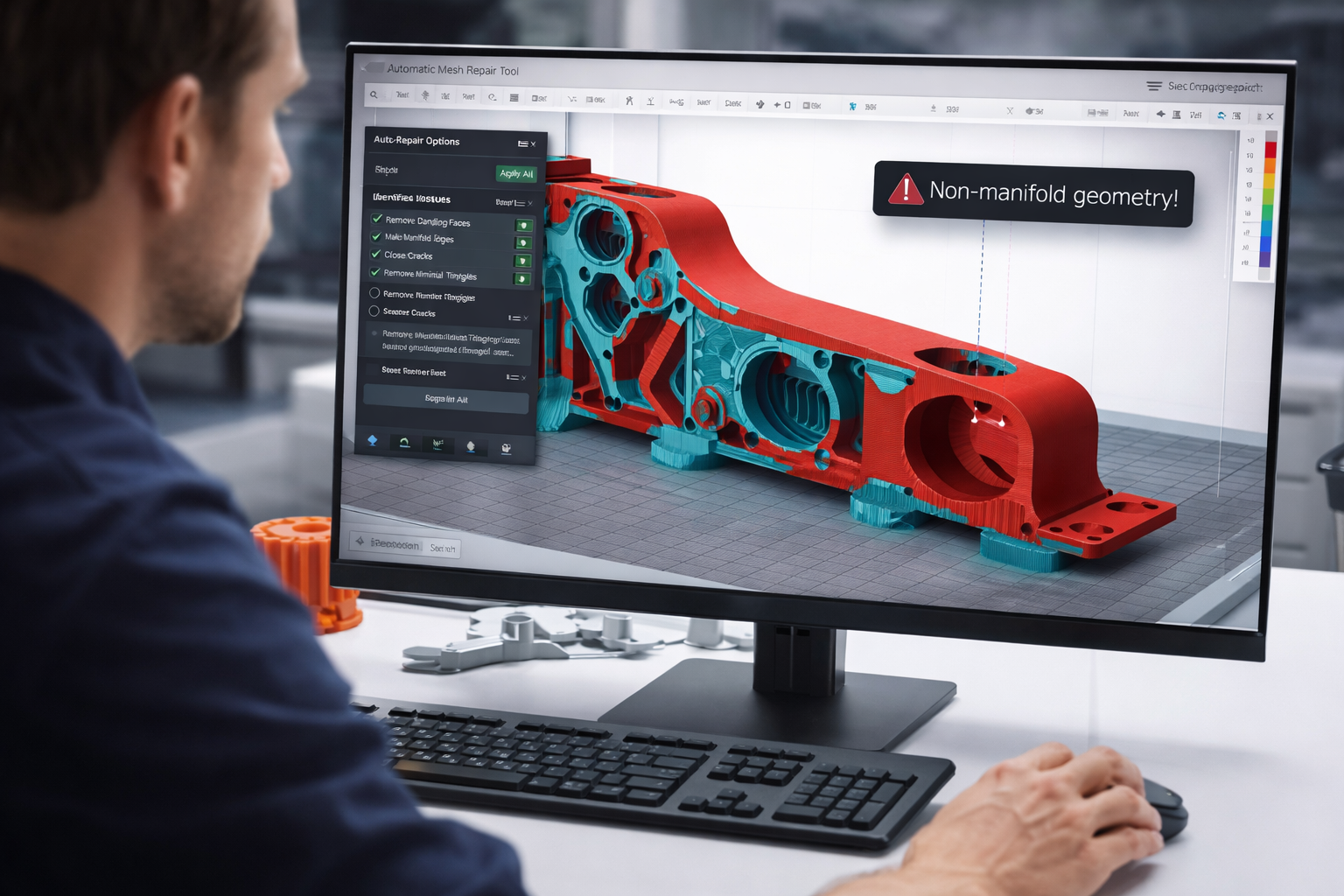
3D printing often fails not because of the printer, but because of problems inside the STL file itself. Broken geometry, missing surfaces, and mesh errors can cause slicing problems, printing failures, or completely unusable parts.
Fortunately, most STL issues can be repaired quickly with the right tools.
In this guide you will learn:
If your file is ready but you’re unsure whether it will print correctly, you can also use our online 3D printing service to check the model before production.
An STL file represents a 3D model using thousands of tiny triangles that form the surface of an object. When these triangles are not connected properly, the model becomes “broken”.
Common signs of a broken STL file include:
When these problems occur, the slicer may struggle to generate toolpaths or produce unexpected results during printing.
Before sending a file to print, it’s always a good idea to check if the model is printable. How to Check If a Model Is 3D Printable
Several types of geometry problems can cause STL files to fail.
A non-manifold edge occurs when more than two faces share the same edge. This confuses slicing software because it cannot determine what is inside or outside the object.
Small gaps in the surface prevent the model from being watertight, meaning it cannot be interpreted as a solid object.
If triangle directions are flipped, parts of the model may appear inside-out to the slicer.
Overlapping surfaces or intersecting parts can cause slicing errors or unexpected internal structures.
Many of these issues originate during the export process from CAD software. How to Export STL Files from CAD Software
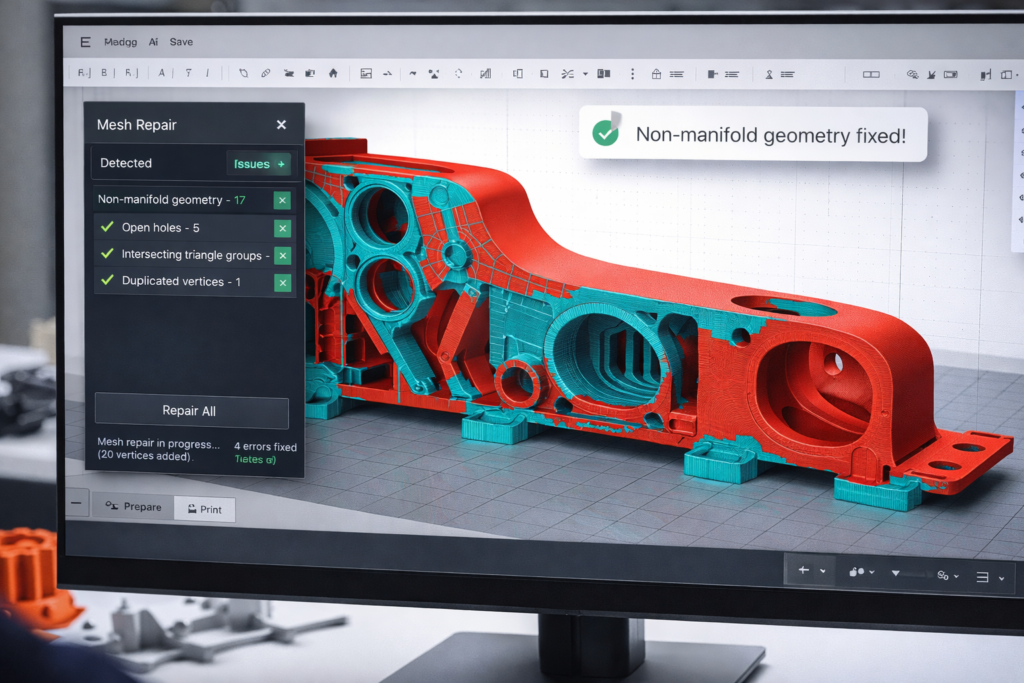
Before attempting repairs, it’s important to inspect the STL file.
You can detect mesh problems using common slicing software such as:
These tools often highlight mesh errors or attempt automatic repairs during slicing.
Look for warnings such as:
You should also visually inspect the model for missing faces or strange geometry artifacts.
Preparing files correctly from the start reduces the chance of STL errors. How to Prepare an STL File for 3D Printing
The easiest way to fix broken STL files is using automatic mesh repair tools. These programs analyze the model and repair common geometry problems.
Typical automatic repairs include:
Automatic repair works well for most simple models, but complex engineering parts may require manual adjustments.
Several reliable tools allow you to repair STL files quickly.
Autodesk Meshmixer includes powerful mesh repair features and an automatic “Inspector” tool that finds and fixes geometry issues.
Windows users can easily repair STL files using the built-in repair function when opening a model.
Netfabb is widely used in professional 3D printing workflows for fixing STL meshes and preparing models for production.
Although more advanced, Blender provides full control over mesh editing and repair.
These tools can repair most STL issues within minutes.
In some cases automatic repair tools cannot fully fix the model.
Manual repair may involve:
This type of repair is usually done using advanced modeling software such as Blender or professional CAD tools.
If the model is complex or intended for engineering use, manual repair ensures the geometry remains accurate.
The best way to repair STL files is to avoid errors during model creation.
Follow these practices:
You can also reduce file problems by choosing the correct file format during design. Best File Formats for 3D Printing (STL vs STEP vs OBJ)
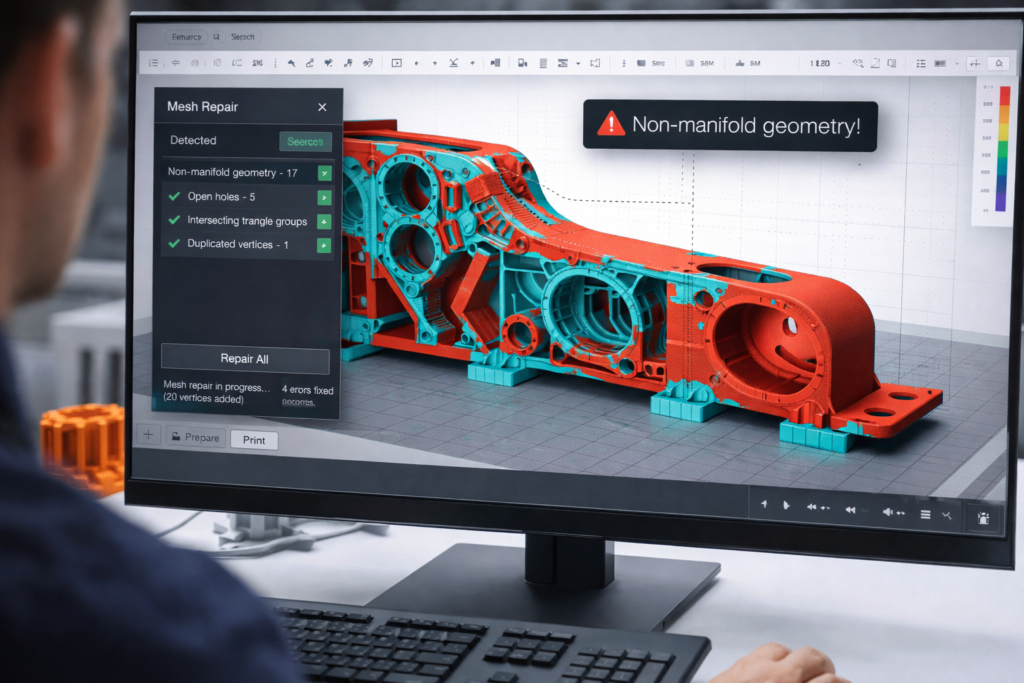
If your STL file contains errors or cannot be sliced correctly, professional repair may be required before printing.
At 3D Revolution, we help customers repair and prepare models for successful printing.
You can upload your STL file and receive a quote online. Our system checks the model and helps ensure it is printable before production begins. Upload Your 3D Model for Printing
Taking a few minutes to repair a broken STL file can prevent failed prints, wasted material, and lost time. Proper file preparation is one of the most important steps in successful 3D printing.