

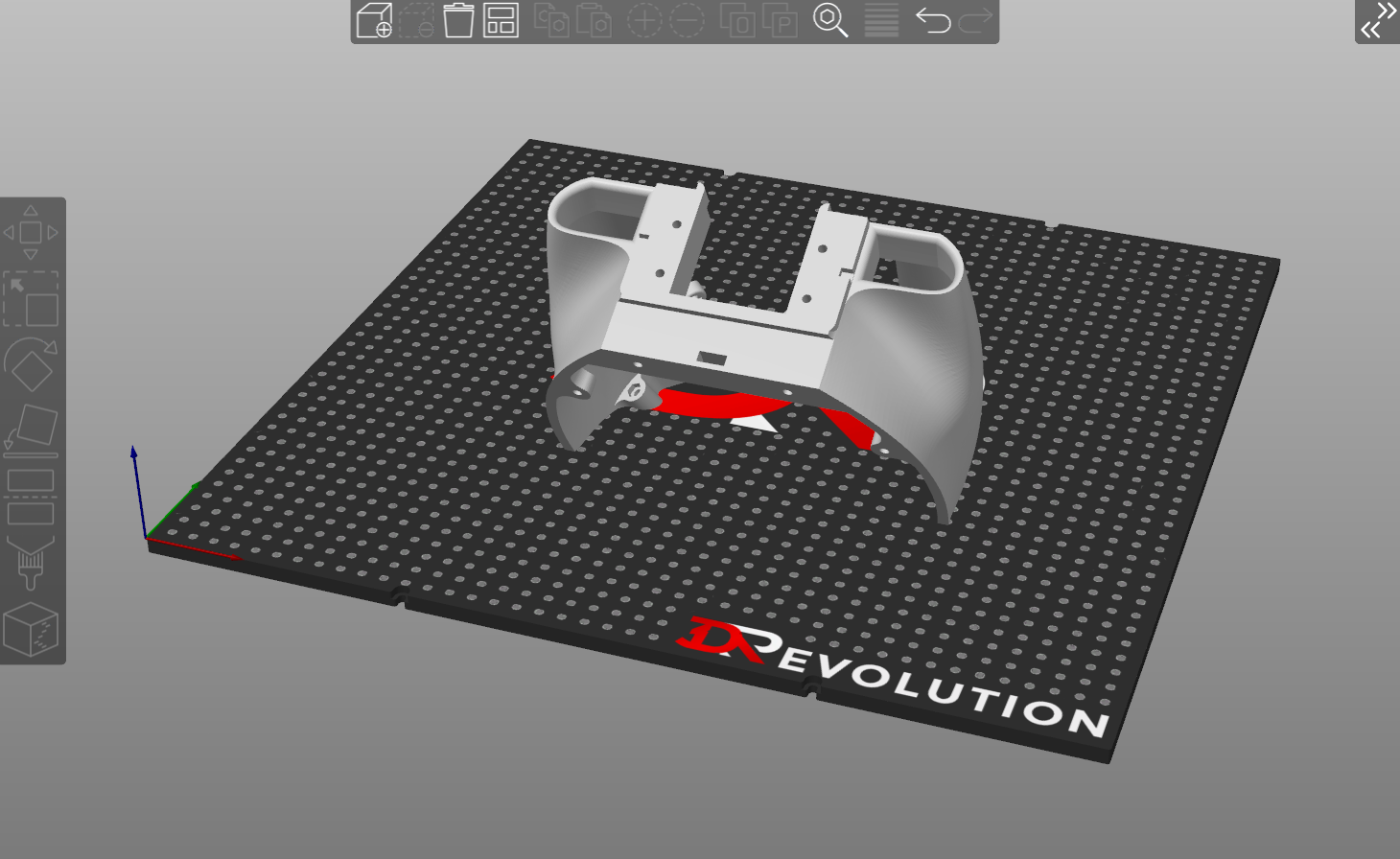
Preparing an STL file for 3D printing correctly is one of the most important steps before starting a 3D print. Even a well-designed model can fail during printing if the STL file contains errors such as holes in the mesh, non-manifold geometry, or incorrect wall thickness.
In this step-by-step guide, we explain how to prepare an STL file for 3D printing, how to check if your model is printable, and which tools can help you fix common STL issues before sending your file to a 3D printing service.
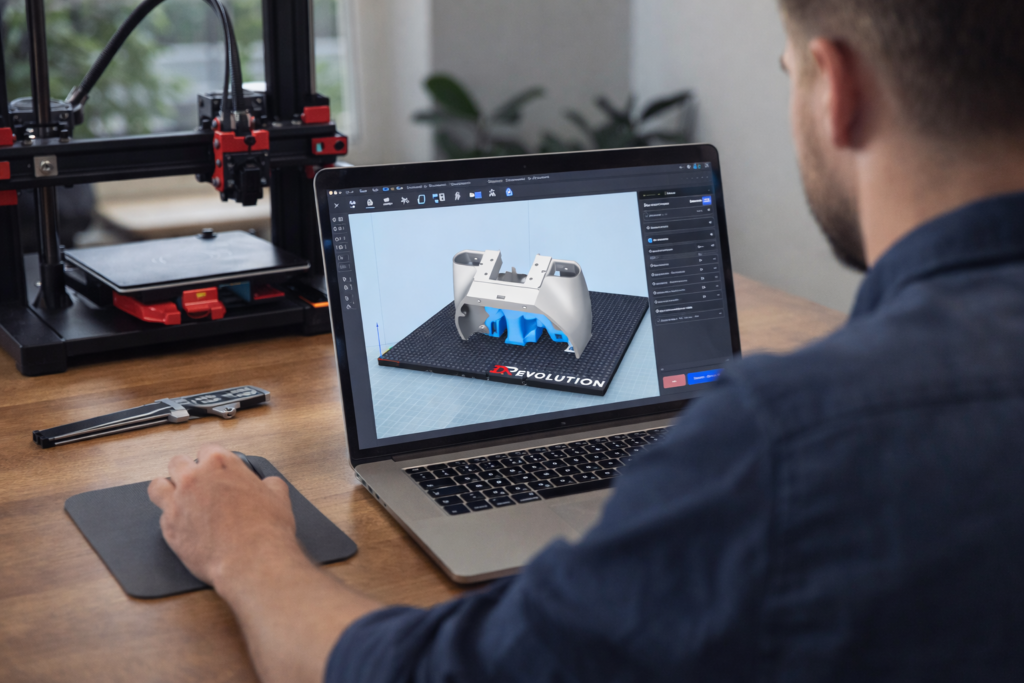
An STL file is the most common file format used in 3D printing. The name stands for “Standard Triangle Language” or sometimes “STereoLithography”. The file describes the surface geometry of a 3D object using thousands of small triangles.
Unlike CAD formats such as STEP or IGES, an STL file does not store information about materials, colors, or parametric features. It only represents the shape of the object.
Because of this, STL files must be carefully prepared to ensure that the model is fully closed, properly scaled, and free from geometry errors before printing.
Many STL files downloaded from the internet or exported from CAD software contain issues that can cause printing failures. Some of the most common problems include:
• Non-manifold geometry (edges shared by more than two faces)
• Holes in the mesh
• Inverted normals
• Very thin walls that cannot be printed
• Incorrect scaling or units
• Intersecting geometry
Before sending a file to a 3D printer, it is important to check for these problems and repair them if necessary.
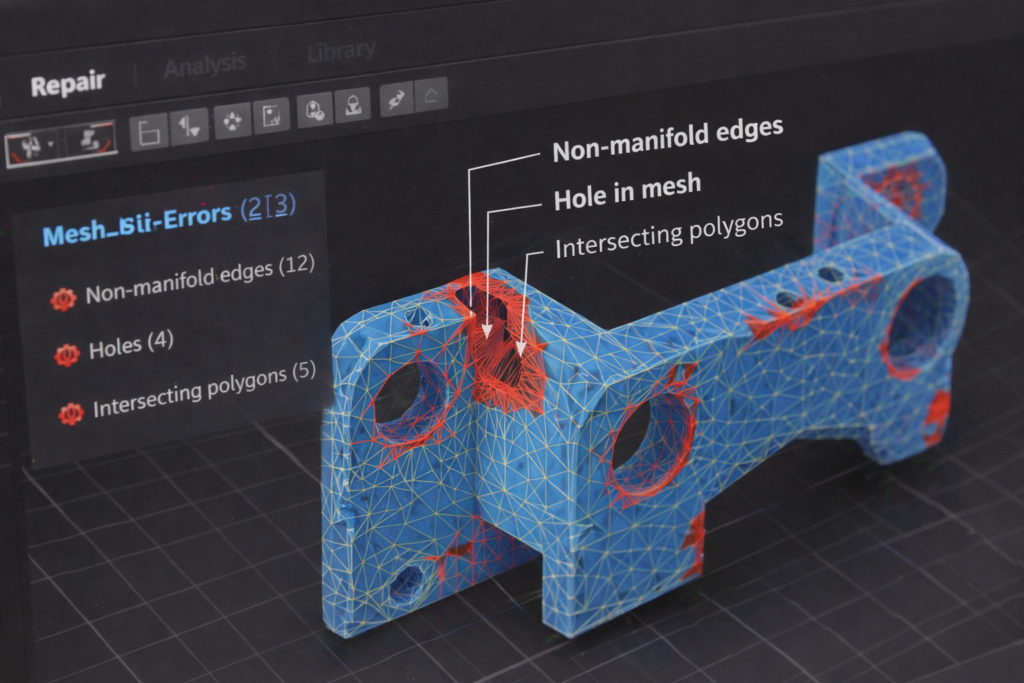
Before printing a model, it is recommended to analyze the STL file using specialized software. These tools can detect mesh errors and highlight areas that may cause printing problems.
Popular tools for checking STL files include:
• Autodesk Meshmixer
• Microsoft 3D Builder
• Netfabb
• Blender
• PrusaSlicer or Cura
Most slicer software can automatically detect non-manifold edges or holes in the mesh, allowing you to repair the model before starting the print.
If your STL file contains geometry problems, most of them can be repaired using mesh editing tools. For example, Meshmixer and Netfabb both offer automatic repair functions that can close holes and fix non-manifold edges.
Typical STL repair steps include:
• Running automatic mesh repair tools
• Closing holes in the geometry
• Removing duplicate faces
• Recalculating normals
• Ensuring the model is a watertight mesh
After repairing the file, it is recommended to re-export the STL and check it again in a slicer before printing.
When exporting an STL file from CAD software, the resolution settings can affect both the print quality and file size.
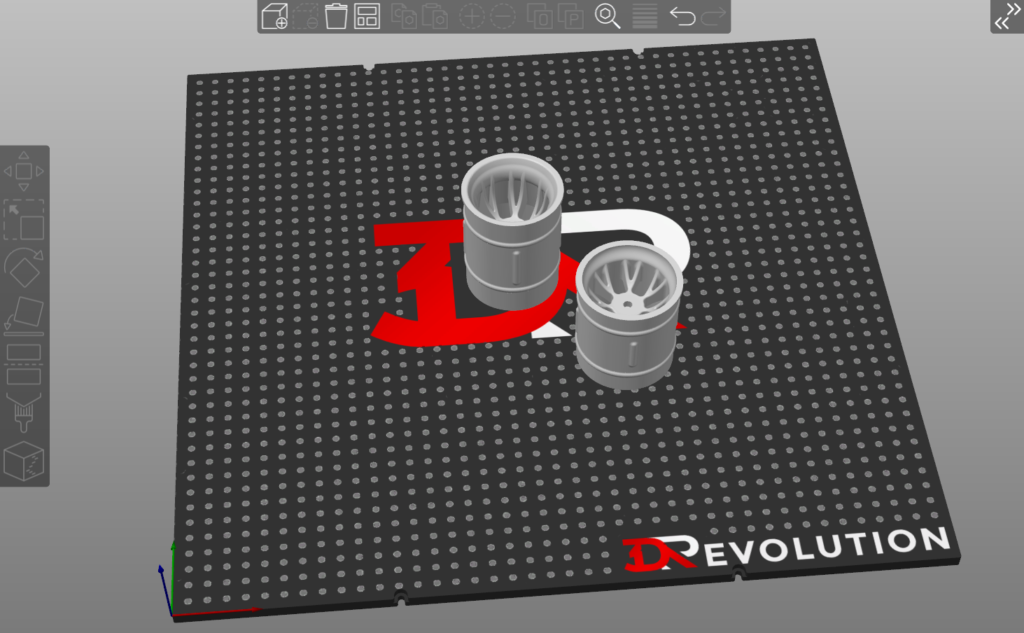
Recommended STL export settings usually include:
• High enough resolution to preserve curved surfaces
• Avoid extremely large triangle counts
• Correct units (millimeters are most common)
• Minimum wall thickness suitable for the printing process
For most FDM prints, wall thickness should generally be at least 1–2 mm depending on the material and printer.
To understand pricing factors, see our guide on 3D printing costs in the UK.
Before sending your STL file to a 3D printer, it is useful to perform a final quick check. This helps avoid failed prints and wasted material.
Make sure that:
A quick final inspection in your slicer can prevent many common printing failures.
If you already have an STL file ready, the next step is to upload it to a reliable 3D printing service.
At 3DRevolution.co.uk we can review your STL file, check for common geometry problems, and recommend the best printing material and technology for your project.
Simply upload your model and request a quote to get started. If you are unsure how to prepare an STL file for 3D printing, our team can review your model and help make it ready for production.