

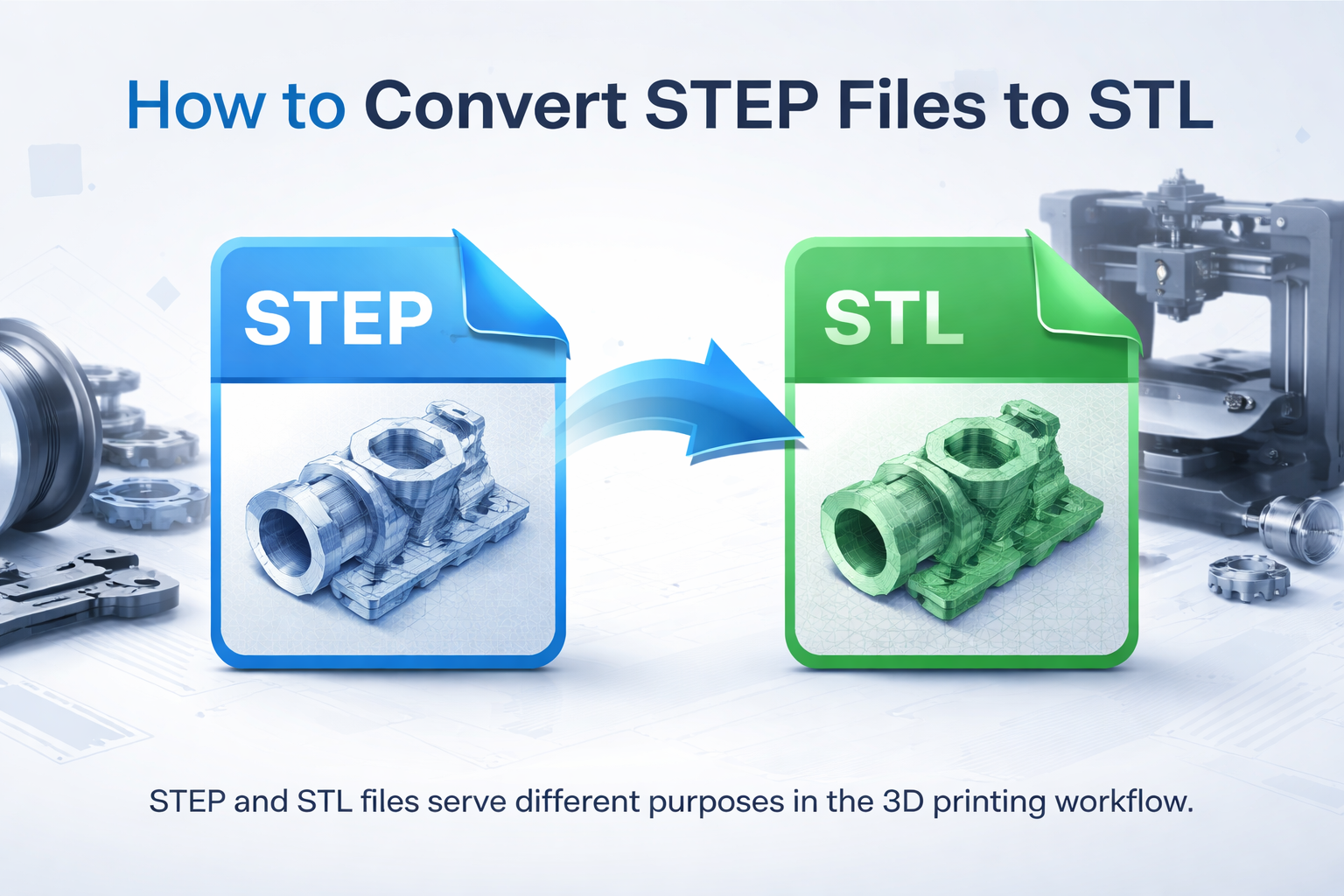
If you have a STEP file and need to 3D print it, one of the first things you may need to do is convert it to STL. STEP files are widely used in CAD software for precise 3D models, while STL is the most common file format used for 3D printing.
In this guide, we explain how to convert STEP files to STL, which software you can use, and what to check before sending the file to print. If you need help preparing your model, you can also use our 3D printing service UK or upload your file directly through our instant quote / upload page.
A STEP file is a 3D CAD file format commonly used for engineering, product design, and manufacturing. It usually comes with file extensions such as .step or .stp.
Unlike STL, a STEP file stores precise geometry and editable model data. This makes it ideal for design work, but not always ready for direct 3D printing.
STEP files are widely used because they:
The main difference is simple:
A 3D printer or slicer usually needs STL, 3MF, or another printable mesh format, not the original STEP model.
You convert STEP to STL because slicer software such as Bambu Studio, Cura, OrcaSlicer, or PrusaSlicer usually works with mesh-based files rather than CAD solids.
Converting a STEP file to STL allows you to:
If your model is not ready after conversion, you may also want to read How to Prepare an STL File for 3D Printing.
There are several ways to convert STEP to STL, depending on what software you already use.
Fusion 360 is one of the most popular options. You can open the STEP file, inspect the model, and export it as STL.
It is a good choice if you want to:
FreeCAD is a solid free option for converting STEP files to STL.
It is useful if you want:
If you already work in SolidWorks, exporting STEP to STL is straightforward. This is common in engineering and manufacturing environments.
Some online tools can convert STEP to STL without installing software. These are convenient for quick jobs, but they are not always ideal for sensitive, complex, or high-precision files.
For important parts, using proper CAD software is usually safer.
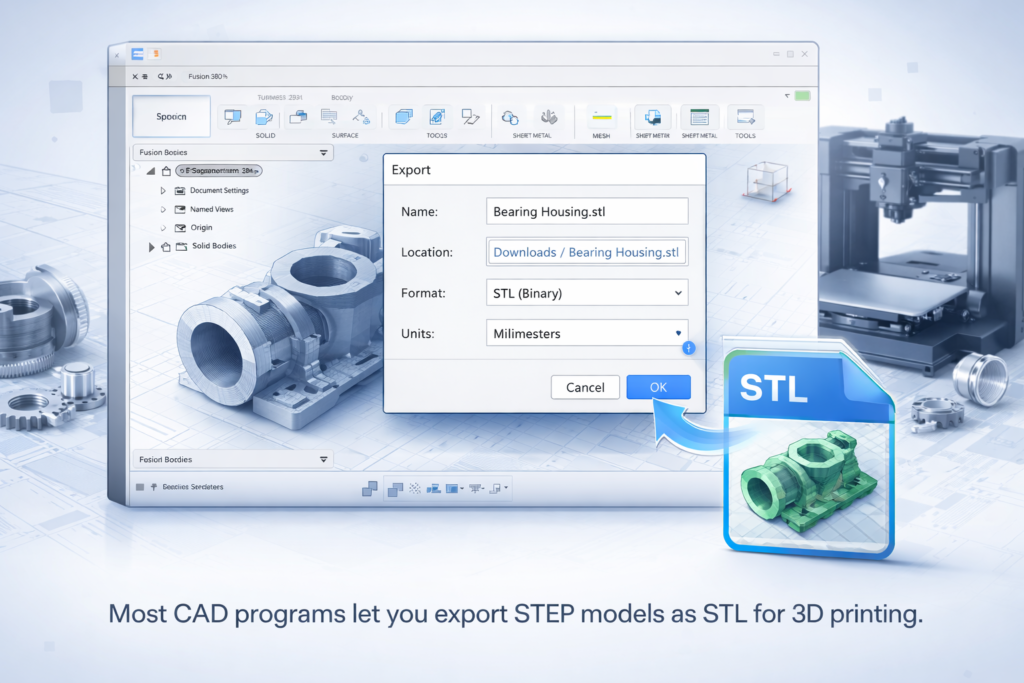
Here is the general process.
Import the STEP or STP file into your CAD software. Check that the model opens correctly and that all parts are present.
Before exporting, look for issues such as:
Choose the export option and select STL as the output format. Most CAD software will let you adjust mesh quality at this stage.
Typical settings include:
In most cases, binary STL in millimetres is the best choice for 3D printing.
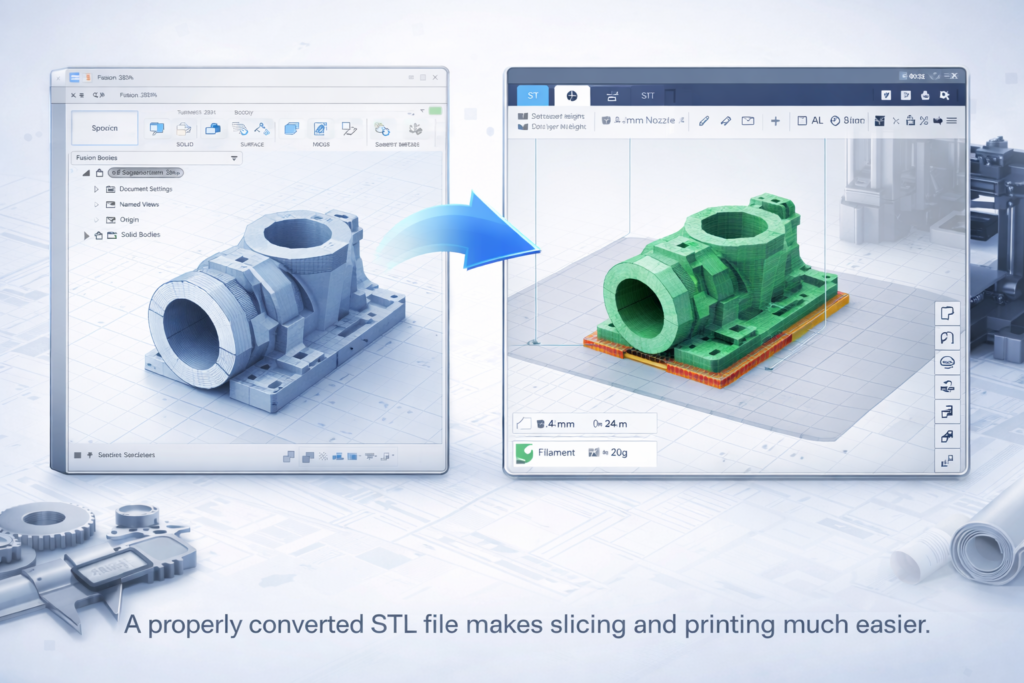
After conversion, load the STL into your slicer to check:
This is an important step because a successful conversion does not always mean the part is ready to print.
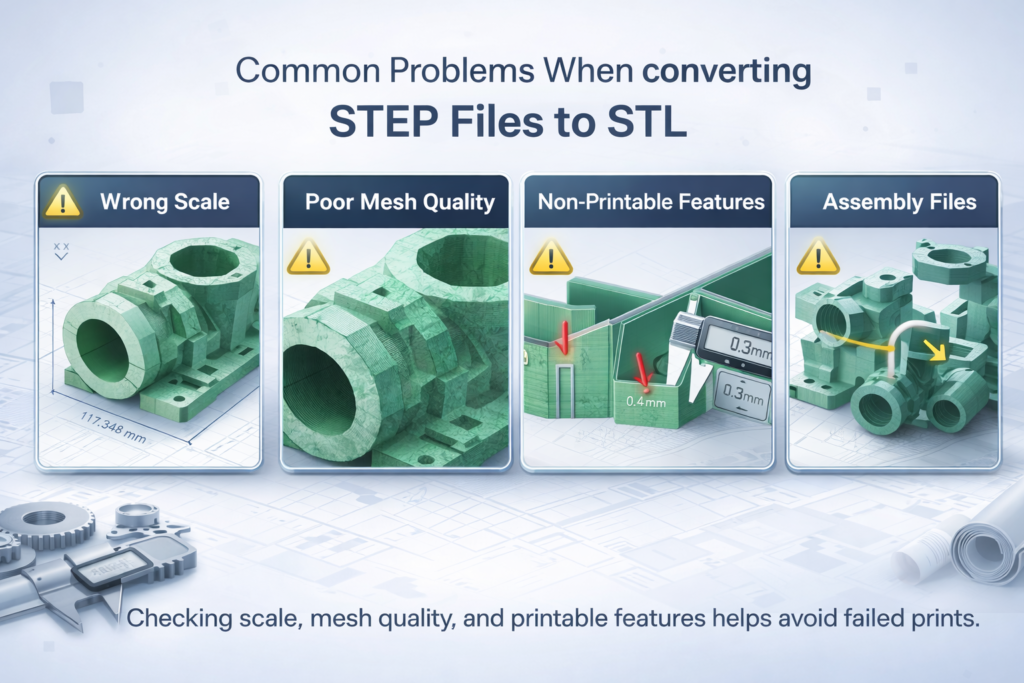
Converting STEP files is usually simple, but a few common issues can cause trouble.
One of the most common problems is incorrect unit conversion. A model designed in millimetres may import or export at the wrong size if the software assumes inches or another unit.
Always confirm the final dimensions in your slicer before printing.
If the STL export resolution is too low, curved surfaces may look faceted or rough. If the resolution is too high, the file may become unnecessarily large.
The goal is to use enough detail for accurate printing without creating an oversized mesh.
A STEP model may include details that are too thin, too small, or too complex for FDM or resin printing. Threads, sharp edges, tiny holes, and ultra-thin walls often need adjustment.
Some STEP files contain multiple bodies or assembled components. These may need to be exported as separate STLs or checked carefully to make sure parts do not overlap in ways that cause print issues.
You may also find our guide useful here: Common STL File Errors and How to Fix Them.
Very thin features may look fine in CAD but fail during printing. Make sure walls and small details are suitable for your chosen printing process.
Small fillets, embossed text, or tiny features may not add value to the printed part. Simplifying the design can improve printability and reduce slicing problems.
Do not worry too much about print orientation during conversion. Focus first on exporting a clean STL. Orientation is usually better adjusted inside the slicer.
If the part is functional, mechanical, or needs tight tolerances, it is worth having the file checked before printing. This is especially true for prototypes, brackets, enclosures, and replacement parts.
If you are unsure, you can send the file through our 3D printing service UK page and we can review it before production.
Some modern slicers and CAD-integrated workflows may support STEP files more directly, but in most real-world cases, STL is still the standard format used before printing.
Even if direct import is possible, checking the mesh result and printability is still essential. For most users, converting STEP to STL remains the safest and most reliable workflow.
If you are working with:
it can save time to have the model checked by an experienced 3D printing service.
At 3DRevolution, we help customers prepare files for print, check geometry, and produce quality parts in the UK. You can upload your model through our instant quote / upload page or learn more about our 3D printing service UK.
Converting STEP files to STL is usually a simple process, but it is still important to check the model before printing. A clean export, correct scale, and sensible mesh settings can save time, material, and frustration later.
If you have a STEP file and are not sure whether it is ready for printing, 3DRevolution can help. Upload your model, get a quote, and we can help turn your design into a finished part.